Clear guidance for practicing drums on your own
Choose what to practice, learn a passage at your own pace, then play the groove with feedback on your MIDI hits. Review your results to plan the next step.
Free trial, no account: start by checking your kit and audio setup.

A clear path, at your own pace
You can start with a single groove. Learn helps you work out a passage; the coach follows you when you play the whole groove. A program brings your goals together, and Planning puts them on dates when you need it.
Work on your tempo
The free metronome offers swing, rhythmic groupings, silent bars and progressive tempo. While playing with the coach, adaptive tempo follows your results and the fading click helps you develop your internal clock.
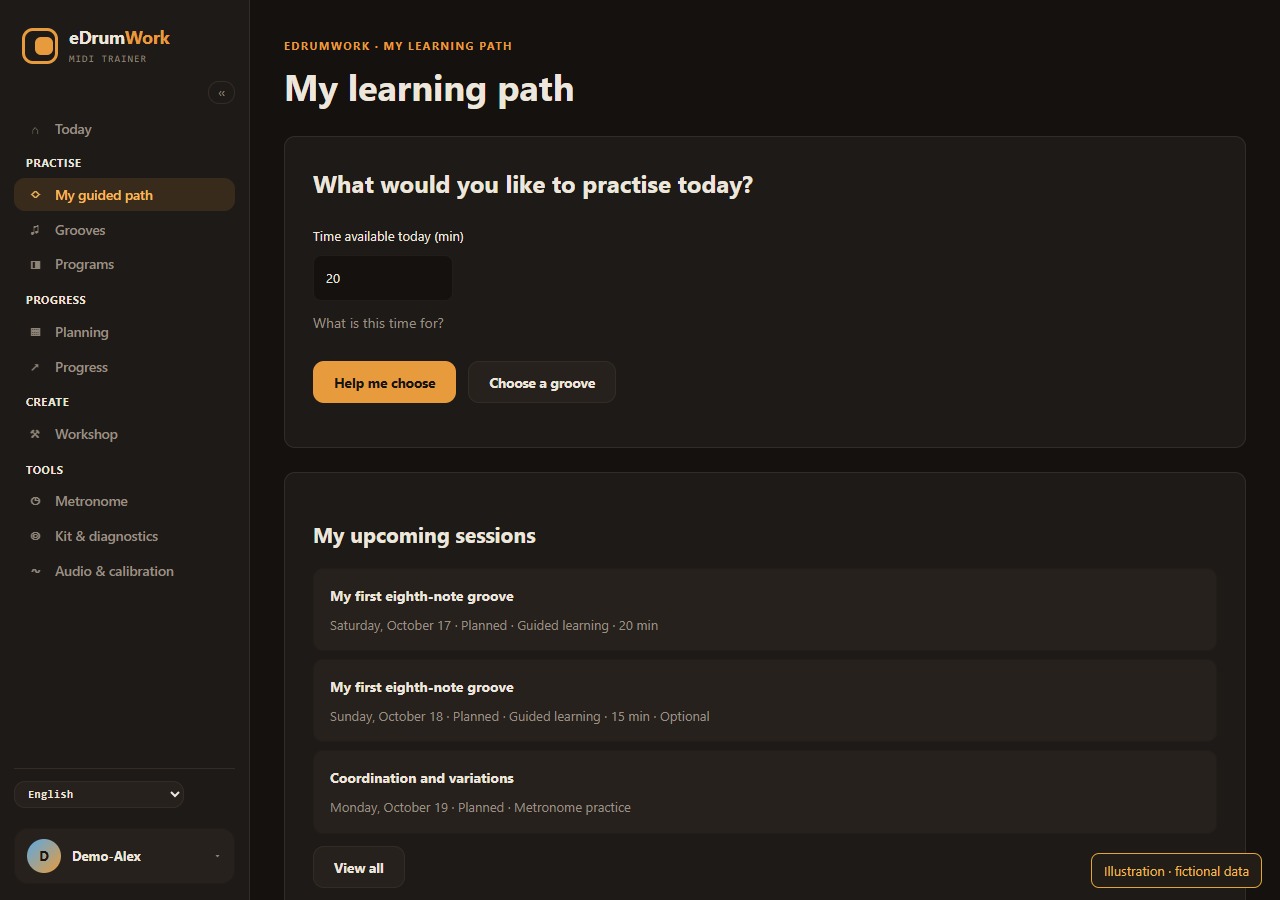
Choose what to practice today
My guided path helps you choose what to work on based on where you’re starting, what you like and the time you have. Pick up a planned session, resume a groove you’re learning or choose one from the catalog.
Got twenty minutes? Stick with one passage instead of switching grooves every time something gets hard.
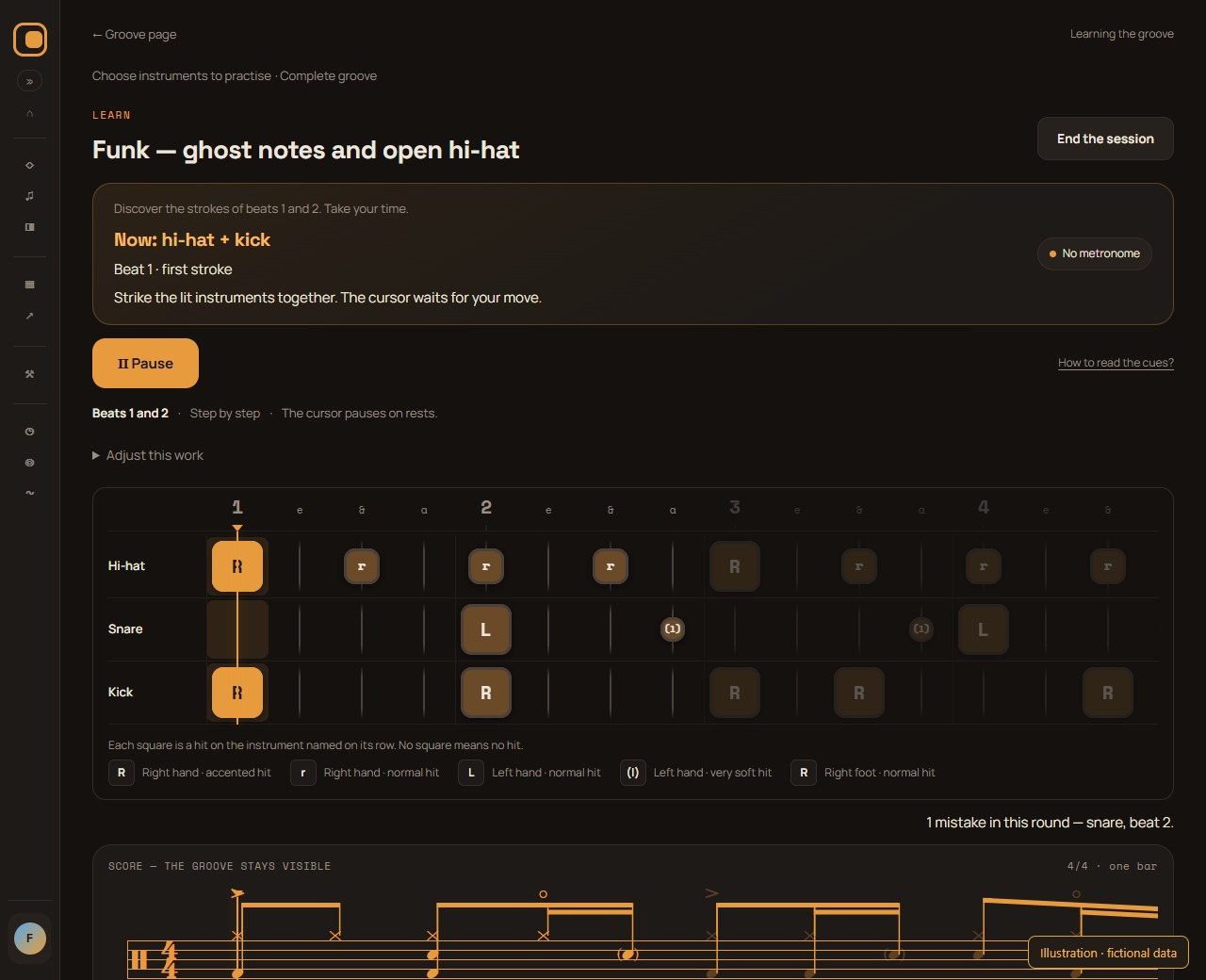
Learn the passage that trips you up
In Learn, narrow down the passage and choose which instruments to practice. Step by step waits for each move with no set tempo; Listen, then play alternates a model and your answer. Your work is saved, so you can pick up where you left off.
Start with the hands or a short passage, then add the other instruments back. Playing the whole groove is a separate step.
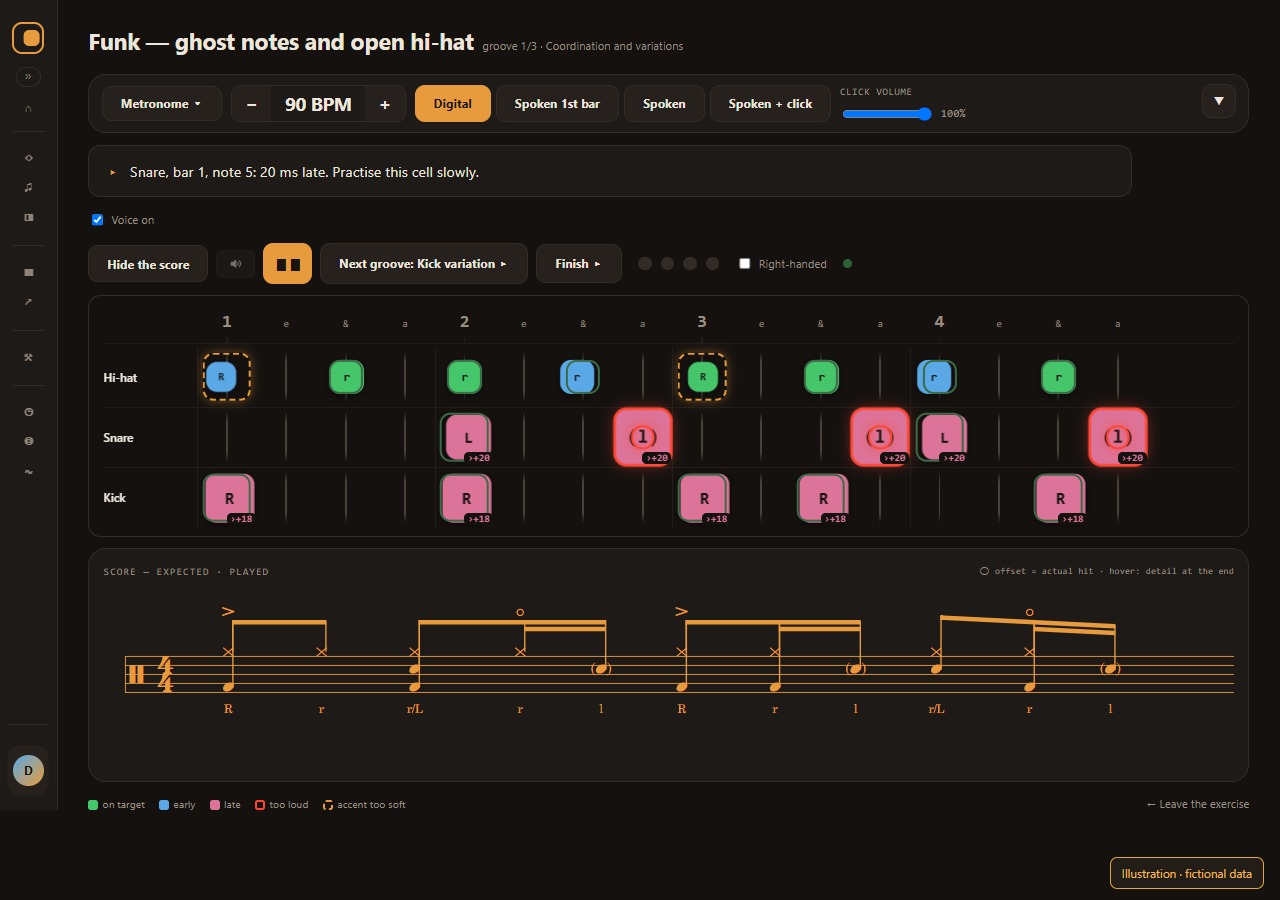
Play and understand the coach’s feedback
Play a single groove or the entries of a program. The coach watches your MIDI hits and gives advice on what it can measure. The summary of each full run keeps your results by groove and tempo.
A snare that’s consistently late can become a passage to go back over slowly. MIDI can’t tell which hand hit a given pad.
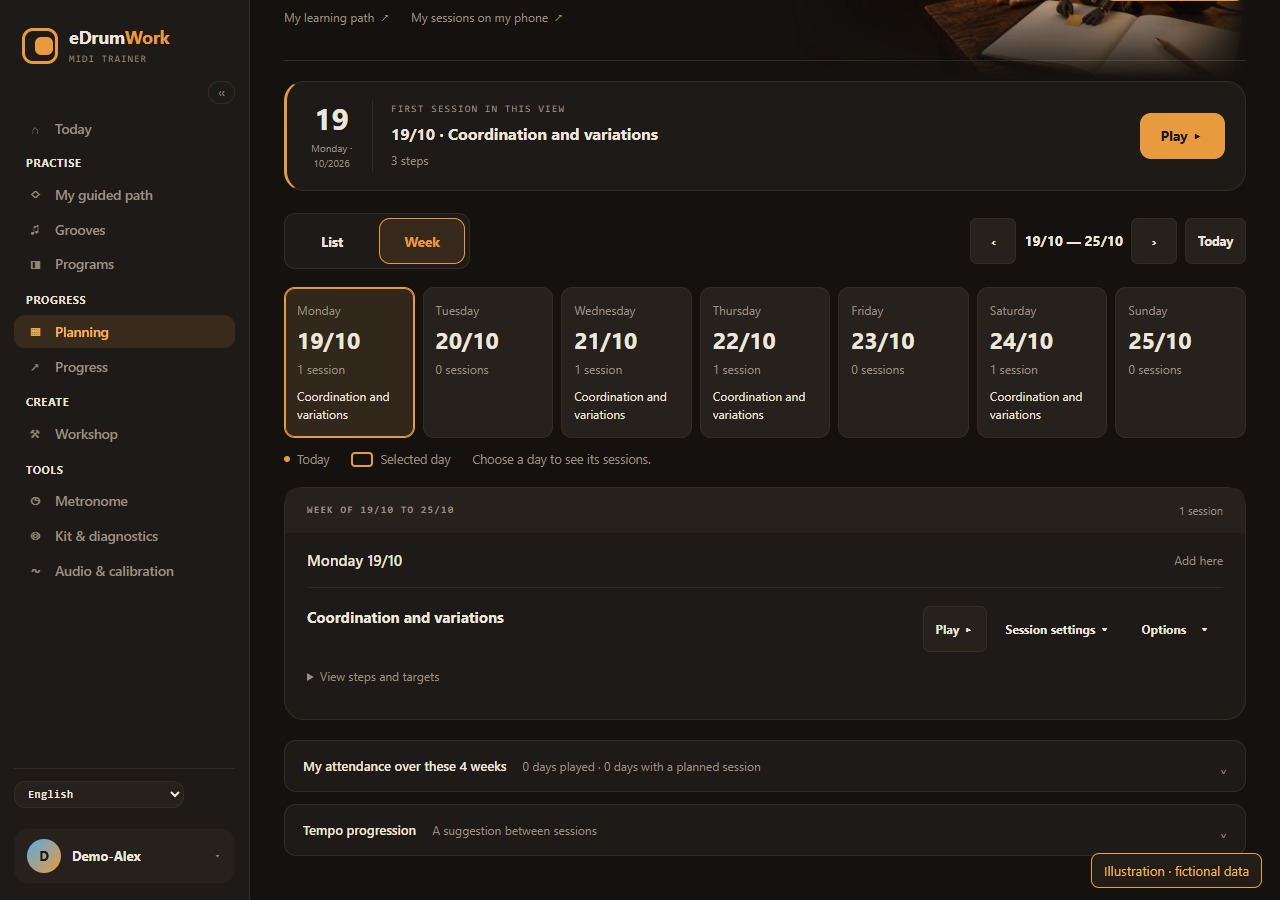
Make practice fit your week
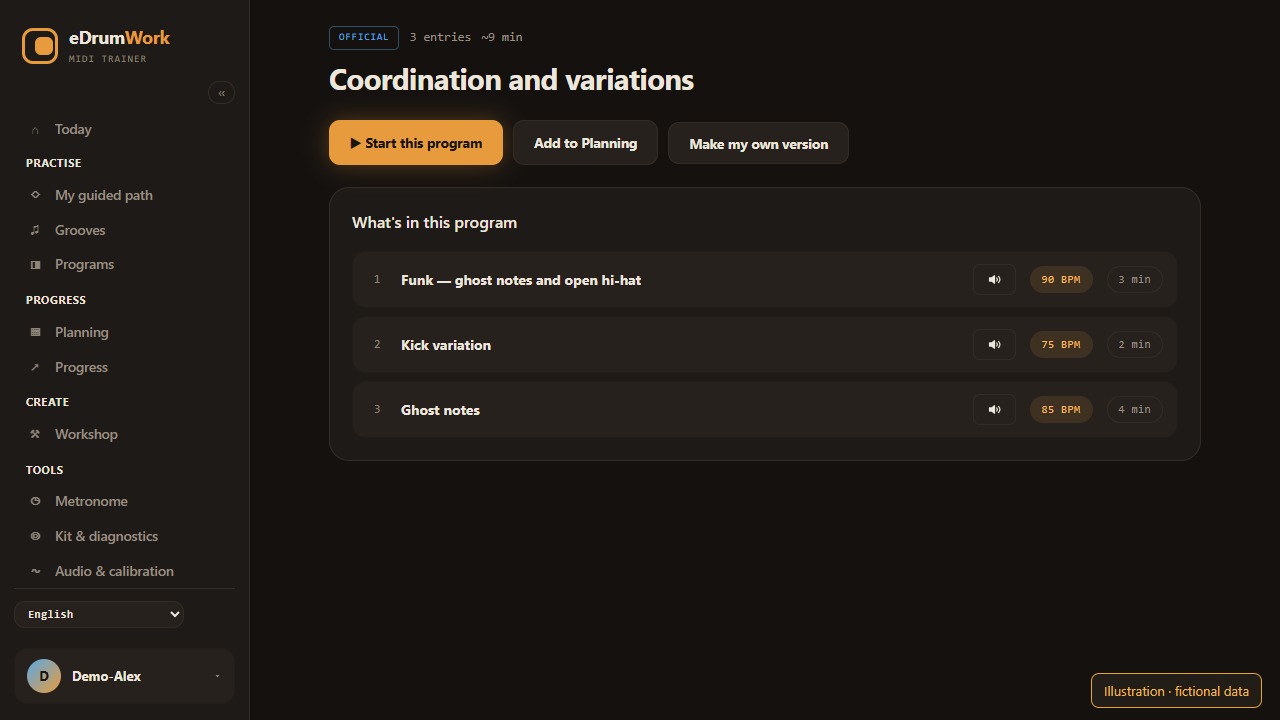
A program groups grooves, each with its own tempo and duration. Planning puts your sessions on dates and lets you adjust their goals. Use the List or Week view; on a phone, My sessions lets you check and reschedule your calendar.
Keep the same program and slow down just one entry for a session. How often you practice is up to you.
Review your results and plan what comes next
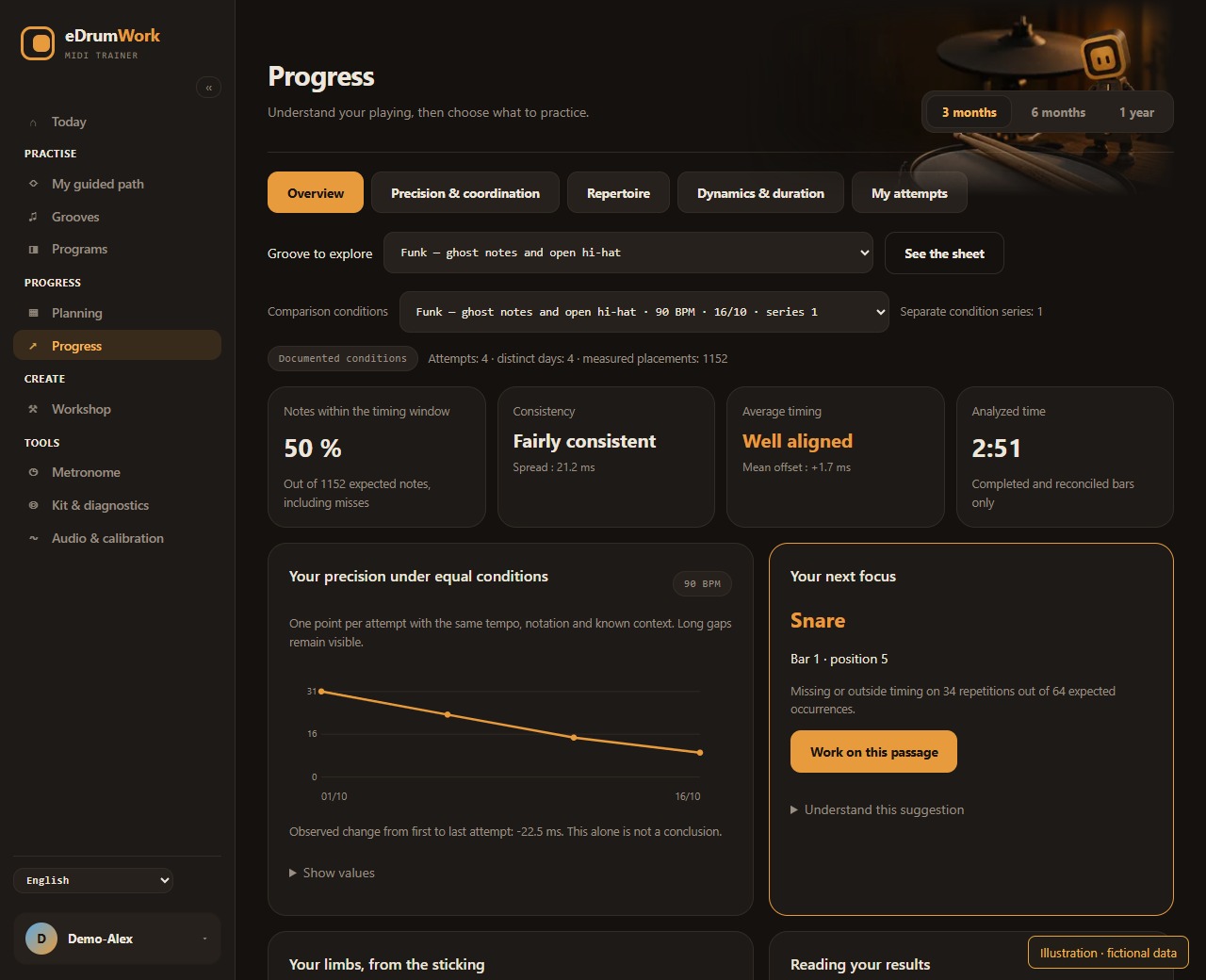
Progress shows average timing, consistency and notes within the timing window separately. Review runs played under comparable conditions and find one specific thing to work on. A suggested next step is yours to accept or not.
An average right on the beat can hide widely scattered hits. A difference between two runs isn’t proof of progress on its own.
Guides to watch and listen to
Free, and with a subscription
Free, no account
With a free account
- Browse and listen to all grooves and programs
- Keep your kit check history
- Save your metronome presets
Put the measurements in context
eDrumWork reads MIDI hits. Device latency can shift their timing; your kit’s velocity references let it judge dynamics, and articulations depend on the zones it recognizes. When something can’t be measured, it says so. Your sound, how the playing feels and a teacher’s advice still count.
Try it on your kit
Check MIDI reception and your audio setup, then try the coach on the trial grooves. The anonymous trial and its summary stay in this tab; full practice and tracking come with the subscription.